




Spinogambino App
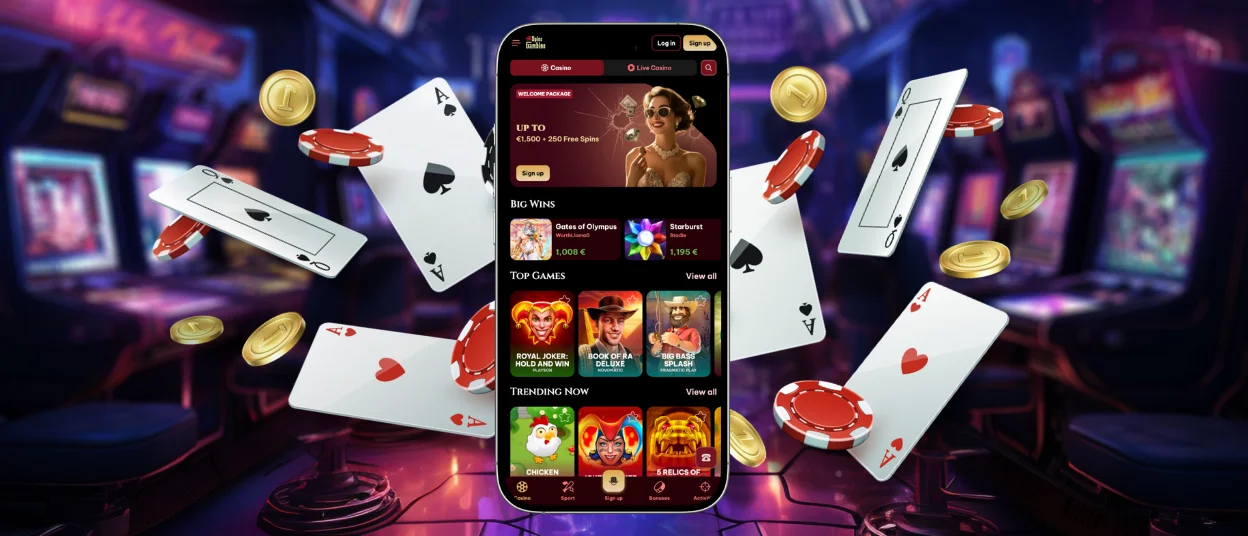
The Spinogambino app is the quickest way to reach our casino from a phone or tablet without changing how you play. The mobile version mirrors the desktop platform: you use the same account and game lobby, only adapted for smaller screens and touch control.
If you prefer to spin slots during short breaks, follow live tables on the go, or simply want a cleaner shortcut to the site, our progressive web app (PWA) gives you that access in a light, fast format.
We created the PWA so that players don’t have to hunt for downloads in stores or install heavy files. You open Spino Gambino in a browser, add an icon to your home screen, and launch the casino like a regular app. The result is a stable connection to our full catalog—from popular slot releases such as Coin Strike Hold and Win by Playson or Gold Rush with Johnny Cash by BGaming to live dealer rooms and game shows.



Spinogambino App for Android
On Android, the Spinogambino app works through your mobile browser as a PWA. There is no need to download anything from Google Play or install an APK. The lobby, deposit, bonus section and live chat support are available immediately after you log in.
Android devices handle PWAs especially well. Once added to your home screen, the icon opens a standalone window that feels like a native application. Navigation is touch‑friendly, game tiles load quickly, and the interface scales smoothly between phones and tablets. If you switch between devices, your progress, favorites and account settings remain synced because everything runs through your Spinogambino profile.
Install the PWA
Based on our internal usage data from 2025, over 70% of mobile sessions at Spinogambino start through the PWA icon. Players like it because it saves time, doesn’t take up storage, and always opens right into the casino lobby. To install the PWA on Android:
- Open the Spinogambino website in your Android browser.
- Tap the browser menu and select “Add to Home Screen.”
- Confirm to create a shortcut icon on your home screen.
After that, the shortcut behaves like a native app. You can remove the icon anytime from your home screen without affecting your account.

Mobile Application for iOS
iOS users can access the Spinogambino app in the same way—through a PWA added to the home screen. Our mobile casino is optimized for iPhone and iPad browsers, with responsive menus and quick transitions between categories.
The iOS lobby supports most of the same titles you see on the desktop. That includes branded slots, Hold‑and‑Win games, Megaways and a wide live casino selection.
Many of our top providers, such as Playson, BGaming, and Spinomenal, supply games that are already built for mobile play, so reels, buttons and side panels stay readable even on compact displays.
Install the PWA
To add Spinogambino to your iOS home screen:
- Open the Spinogambino website in Safari.
- Tap the Share button (a square with an arrow pointing up).
- Scroll down and select “Add to Home Screen.”
- Confirm by tapping “Add.”
You will then see a Spino Gambino icon on your home screen. Tapping it opens the casino in its own window, with quick access to your balance, recent games and support. There is no separate iOS download required, and updates arrive automatically when you reopen the app, so you always use the latest version.
Play Spinogambino on Mac or Windows
If you prefer a larger screen, you can play Spinogambino on Mac or Windows with any modern browser. The desktop lobby is ideal for long sessions and full‑size live tables. It also makes it easier to explore filters by provider or theme and to view game details side‑by‑side.
For convenience, you can create a desktop shortcut to Spino Gambino. This is not an installed program—just a direct icon that opens our site in a clean window. It reduces the steps between you and the lobby, especially if you log in regularly or follow tournaments and weekly promotions.
Desktop and mobile share the same backend. That means your account status, bonus progress and payment history stay consistent whether you play on a PC at home or open the PWA on your phone.

Benefits and Features of the Spinogambino App
| Feature | PC Version | Mobile App |
| Access & Launch | Access via a desktop browser; the flow is fine for longer, sit-down sessions but takes a bit more effort to start: you need to search for the site, locate it in a tab, and log in manually | Starts from a home-screen icon in one tap and opens straight into the lobby—no searching for the site or extra tabs. |
| Navigation | Full menu and filters, but built around mouse/keyboard. | Touch-first layout: big buttons, swipeable lists, and thumb-friendly categories make browsing games faster on small screens. |
| Notifications | No native alerts; you need to check the site to see new promos or tournaments. | Optional push notifications can ping you about fresh bonuses, tournaments, and limited-time offers. |
| Performance on the go | Stable on home/office internet; not designed for switching networks. | Lightweight PWA loads fast over mobile networks and stays stable when moving between Wi-Fi and data. |
| Storage & Updates | Nothing to install; updates are automatic via browser. | Also no installation files—takes almost no storage, updates silently, and always opens the latest version. |
The PWA format brings practical advantages. It loads quickly, even over mobile networks, because there is no heavy installation package, and it takes almost no storage. Push notifications (if you enable them) can alert you when new tournaments start or when limited‑time offers appear in the Promotions section.
Payments work the same way as on desktop, with methods formatted for phone use. Depending on your location, you can deposit via Visa or Mastercard, Apple Pay or Google Pay, and several cryptocurrencies such as Bitcoin, Ethereum, or USDT. All transactions run through encrypted channels, and you can review your limits and history inside your account at any time.
Game performance is also tuned for mobile. Live blackjack, roulette, and baccarat tables resize smoothly, and streaming remains stable in both portrait and landscape mode. For slots, the interface keeps key controls—spin, turbo, autoplay, and paytable—within easy reach.
FAQ
How do I log in after adding the PWA?
Open the Spino Gambino icon from your home screen and tap “Log in.” You’ll enter the same credentials you use on your desktop. If you’re already signed in on that device, the app may take you straight to the lobby.
What should I do if the shortcut doesn’t appear?
First, make sure you’re using a supported browser (Chrome, Firefox, or Edge on Android; Safari on iOS). Then repeat the “Add to Home Screen” step from the browser menu. If the option is missing, update your browser and try again. Our support team is available via live chat if you need help.
Are bonuses and tournaments available on mobile?
Yes. The mobile PWA shows the same Promotions and Tournaments sections as the desktop site. Welcome offers, reload bonuses and competition leaderboards can be activated and tracked from your phone. Terms may change over time, so we recommend checking the Promotions page for current details.
Does the PWA use a lot of storage or battery?
No. A PWA is lighter than a typical downloadable app because it doesn’t store large game files on your device. Battery use depends mostly on the games you play (live streams use more power than standard slots), but the app itself is designed to stay efficient during regular sessions.


